 Snapback6 min read
Restore Mac Windows After Unplugging a Monitor
Disconnecting a monitor scrambles your Mac window layout. Here is why it happens and how to get your windows back to the right displays automatically.
Why Your Windows Scatter When You Disconnect a Monitor
Every Mac user with an external display has experienced this. You unplug your monitor, and every window that was on that display jumps to your laptop screen. They stack on top of each other, resize to odd dimensions, and pile into corners.
When you plug the monitor back in, the windows do not go back. They stay on your laptop screen, and your external display is empty.
This happens because macOS handles display disconnection by moving all windows to the remaining display. It does this to prevent windows from being stranded on a screen that no longer exists. The problem is that macOS does not move them back when the display returns.
How macOS Handles Display Changes
When you disconnect a monitor, macOS does the following:
- Detects the display is gone
- Moves every window from that display to the remaining screen
- Resizes windows that are too large for the new display
- Stacks them wherever there is room
When you reconnect the monitor:
- macOS detects the display
- Extends the desktop to the new display
- Does nothing with existing windows
Your windows are still on your laptop screen, piled up from the disconnection event. You have to drag them back manually.
This behavior has existed in macOS for years. Apple has not fixed it because the window management APIs are limited, and third-party apps are expected to handle it.
The Manual Fix
Without any tools, your options are limited:
Drag windows back one by one. This works but takes time, especially if you have many windows or use multiple external displays.
Use Mission Control. Right-click on app icons in the Dock and assign them to specific displays. This only works for apps that are already open and requires re-assignment when apps restart.
Use macOS Spaces. Assign apps to specific Spaces, which can be tied to displays. This is fragile and breaks when macOS updates change Space behavior.
None of these options are reliable. They require manual intervention every time you dock or undock.
The Automatic Fix
A window manager with display memory solves this. When you save a workspace, it records which display each window belongs to. When you restore that workspace, it checks which displays are connected and places windows accordingly.
Here is how Snapback handles it:
When You Disconnect a Monitor
Snapback does not fight macOS. When you unplug a display, macOS moves the windows. That is fine. Snapback remembers where they were supposed to be.
When You Reconnect
Hit your workspace restore shortcut. Snapback checks which displays are connected. Windows assigned to a connected display go back to their saved positions. Windows assigned to a disconnected display are skipped. Nothing piles up. Nothing goes to the wrong screen.
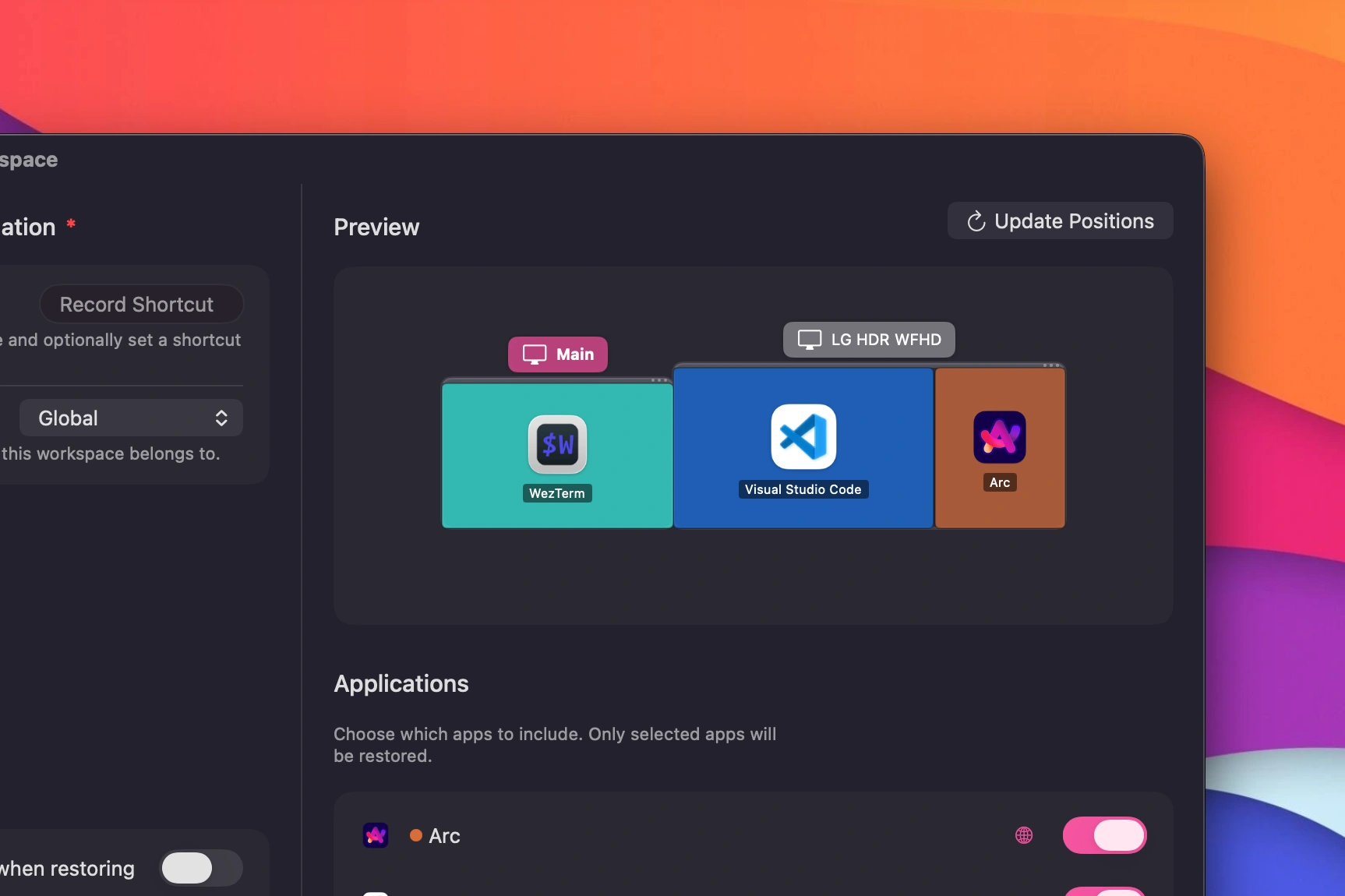 Snapback display settings panel
When You Swap Displays
If you connect a different monitor than usual, Snapback recalculates. It maps windows to available displays based on the current arrangement. The layout adapts without manual intervention.
When You Rotate a Display
Snapback detects the new resolution and orientation, then recalculates window positions to fit.
Setting Up Display-Aware Workspaces
Here is how to create a workspace that handles monitor changes gracefully:
- Connect all your usual displays. Set up your desk the way you normally work.
- Arrange every window. Put each app on the display where you want it. Use window snapping to get precise positions.
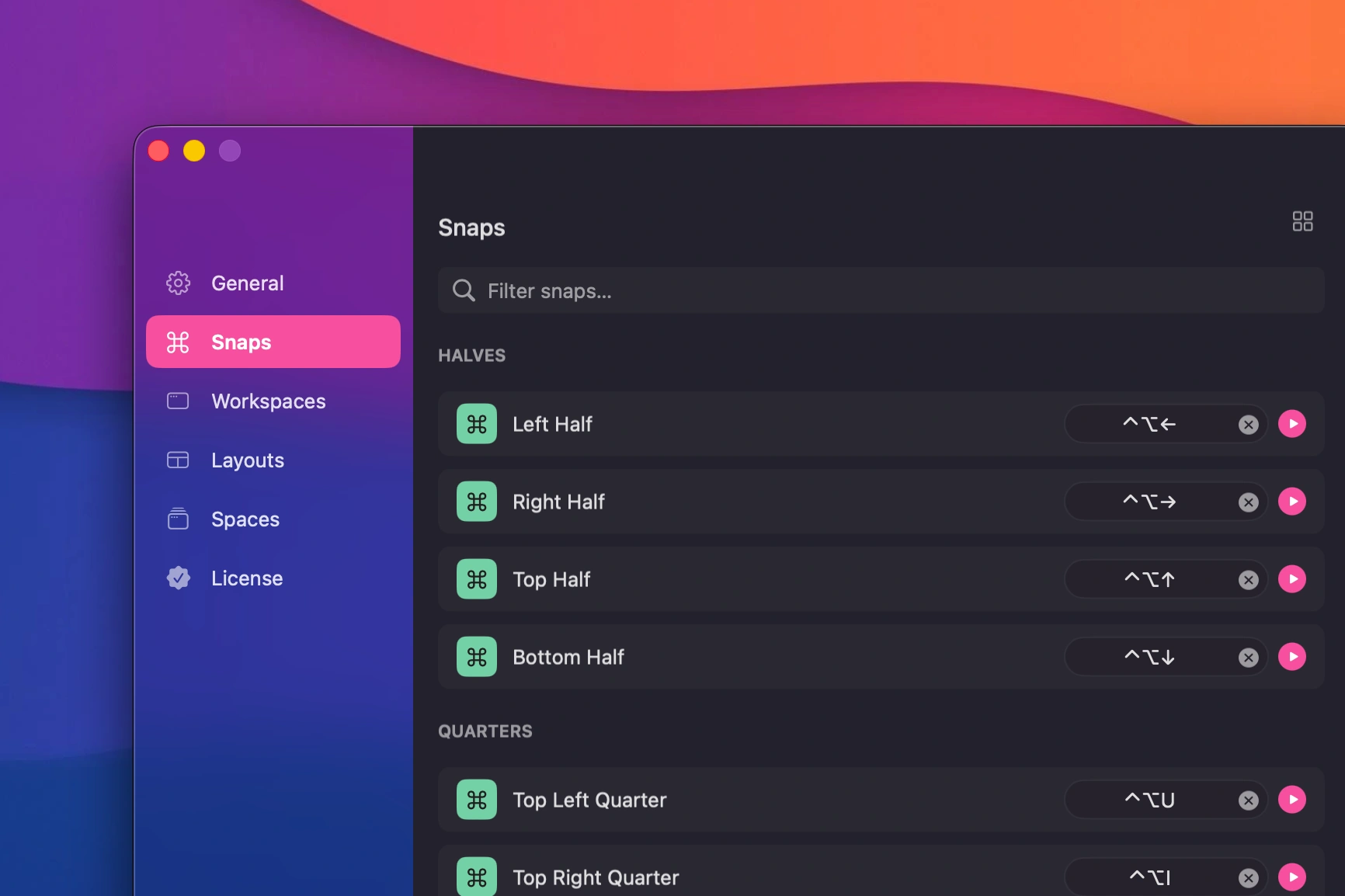 Drag a window to snap it into place
- Save the workspace. Open Snapback from the menu bar, create a new workspace, and name it something like "Desk Setup."
- Assign a shortcut. Pick a keyboard shortcut for instant restoration.
Now you have a saved layout that is display-aware. Every window knows which monitor it belongs to.
Test It
Disconnect your external monitor. Wait a few seconds. Reconnect it. Hit your workspace shortcut. Everything should go back where it was.
If you work in multiple locations (office desk with two monitors, home desk with one, laptop-only on the couch), create a workspace for each setup. Snapback handles the display differences automatically.
Common Scenarios
Office to Home
You work at the office with two external monitors. You take your laptop home and work on the built-in display. Next morning, you plug into your office monitors and hit your workspace shortcut. Windows go back to their assigned displays.
Meeting Room
You disconnect your laptop to take it to a meeting room. You present from the built-in display. After the meeting, you come back to your desk, plug in, and restore your workspace.
Hot Desking
You plug into different monitors at different desks. Each time, you restore your workspace. Snapback maps your windows to whatever displays are available.
Broken or Borrowed Monitor
Your usual monitor is unavailable. You work laptop-only for a day. When the monitor comes back, your workspace shortcut restores the full layout.
What About macOS Stage Manager?
Stage Manager (introduced in macOS Ventura) groups windows and lets you switch between them. It helps with organizing active windows but does not solve the display disconnection problem. When you disconnect a monitor, Stage Manager groups still get scrambled.
Stage Manager and Snapback address different needs. Stage Manager organizes what you are actively looking at. Snapback remembers where everything should be across displays.
Troubleshooting
If windows are not restoring to the correct displays, check these:
-
Accessibility permissions. Snapback needs Accessibility access to read and set window positions. Check System Settings, Privacy and Security, Accessibility. See the troubleshooting guide for details.
-
Display identification. macOS identifies displays by their connection type and resolution. If you swap to a different monitor with the same resolution, macOS might treat it as the same display. This is usually fine, but in rare cases it can cause confusion.
-
App restrictions. Some apps enforce minimum window sizes. If your saved position is smaller than the app's minimum, the app will resize to its minimum dimensions. This is a limitation of the app, not Snapback.
-
JetBrains IDEs. PyCharm, IntelliJ, WebStorm, and other JetBrains apps are excluded from Snapback because they crash when their windows are moved via the Accessibility API. This is a known macOS compatibility issue. See the compatibility FAQ for details.
Download Snapback from the homepage or read the multi-display FAQ for more details on how display management works.
- macOS
- multi-monitor
- window management
- external display
- troubleshooting