 Snapback6 min read
Snapback vs Rectangle: What Is the Difference?
Rectangle snaps windows. Snapback remembers them. A detailed comparison covering features, workflows, and when to use each for Mac window management.
The Short Answer
Rectangle is a window snapper. Snapback is a workspace manager that also snaps windows. They solve different problems, and they work fine together.
If you just need keyboard shortcuts to put windows in halves and quarters, Rectangle does that well. If you need your entire Mac layout to survive a meeting, a laptop close, or a monitor disconnect, that is what Snapback does.
What Rectangle Does
Rectangle is an open source Mac app that gives you keyboard shortcuts and drag-to-edge snapping for window positioning. It is a fork of the now-unmaintained Spectacle app.
Here is what Rectangle handles:
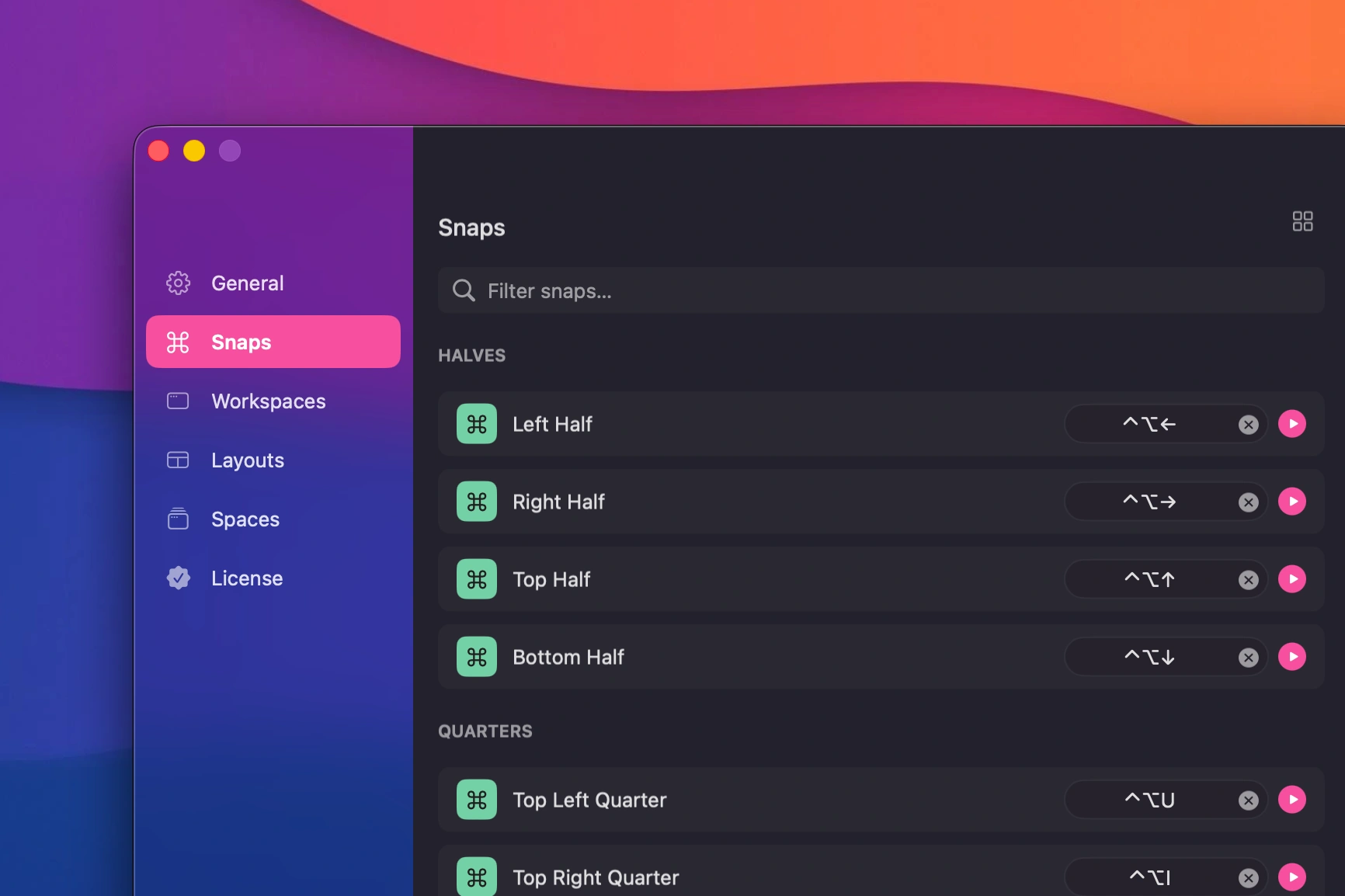 Drag a window to snap it into place
- Snap to left half, right half, top half, bottom half with keyboard shortcuts
- Snap to quarters (corners) with shortcuts
- Snap to thirds (left, center, right)
- Drag to snap by moving a window to a screen edge
- Move windows between displays with shortcuts
- Maximize and center windows
It is lightweight, free, and does not require much configuration. Install it, grant Accessibility permissions, and you are done.
What Snapback Does
Snapback includes all the window snapping features Rectangle has, plus workspace management:
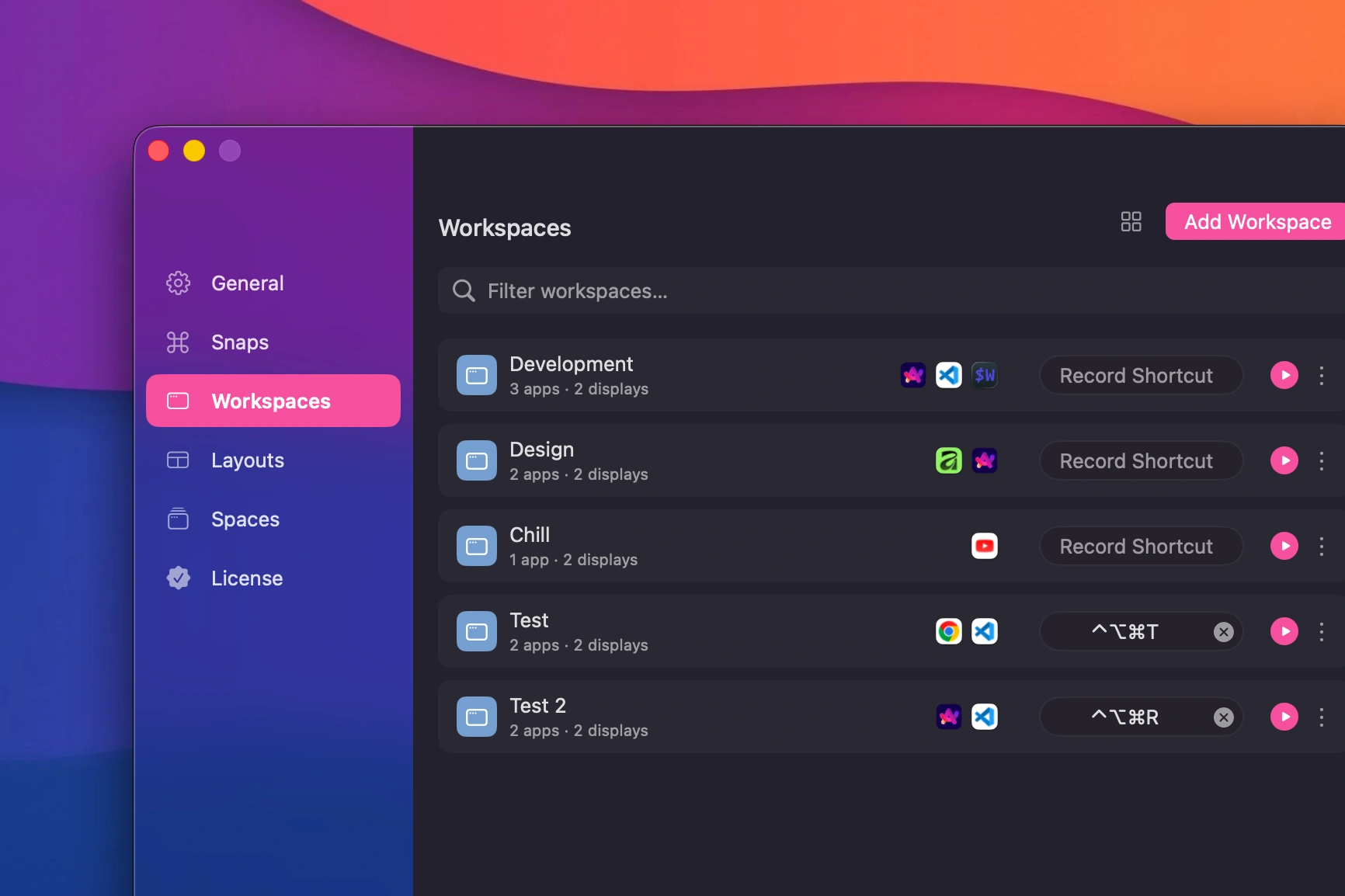 Saved workspaces with multiple configurations
- Window snapping with keyboard shortcuts and drag-to-snap (halves, thirds, quarters)
- Named workspaces that save your full Mac layout: every app, every position, every display
- One-keystroke restore that brings back your entire workspace, reopening closed apps if needed
- Multi-display awareness that remembers which window belongs on which screen
- Layouts that arrange all open windows into predefined grids instantly
The key difference is memory. Rectangle moves windows. Snapback remembers where they were.
Feature Comparison
| Feature | Rectangle | Snapback |
|---|---|---|
| Keyboard window snapping | Yes | Yes |
| Drag to snap | Yes | Yes |
| Snap to halves | Yes | Yes |
| Snap to thirds | Yes | Yes |
| Snap to quarters | Yes | Yes |
| Customizable shortcuts | Yes | Yes |
| Save full workspace layouts | No | Yes |
| Restore workspaces on demand | No | Yes |
| Reopen closed apps on restore | No | Yes |
| Named workspaces | No | Yes (unlimited) |
| Layouts survive restarts | No | Yes |
| Multi-display position memory | No | Yes |
| Predefined layout presets | No | Yes |
| Menu bar app | Yes | Yes |
| Price | Free | Free |
| Open source | Yes | No |
When Rectangle Is Enough
Rectangle is the right tool if your workflow looks like this:
- You open your apps
- You snap them into position
- You work
- You close your Mac at the end of the day
- Tomorrow, you repeat
If your setup is simple and does not change much between sessions, Rectangle handles it. You snap your windows, do your work, and that is it.
When You Need Snapback
Snapback becomes necessary when your workflow involves context switching:
You take a lot of meetings. You are in your dev setup. Calendar notification pops up. You switch to Zoom. Meeting ends. Your layout is gone. With Snapback, one shortcut brings it back.
You dock and undock your laptop. You work at a desk with an external monitor, then take your laptop to a couch or a meeting room. When you come back to your desk, Snapback puts every window back on the right display.
You work on different projects. Coding requires one set of apps. Design requires another. Writing requires something else entirely. Named workspaces let you switch between them instantly.
You restart your Mac. Rectangle forgets everything on restart. Snapback workspaces persist. Restore your layout after a reboot like nothing happened.
Can You Use Both?
Yes. Snapback works alongside Rectangle without conflicts. Some people use Rectangle for quick snapping and Snapback for workspace restoration.
That said, Snapback includes its own snapping engine, so you do not need Rectangle if you are using Snapback. The snapping features overlap. The workspace features do not.
A Typical Day
Here is what a day looks like with workspace restoration:
9:00 AM. Open Mac. Hit one shortcut. Dev workspace loads: VS Code on the left, browser on the right, terminal on the external display.
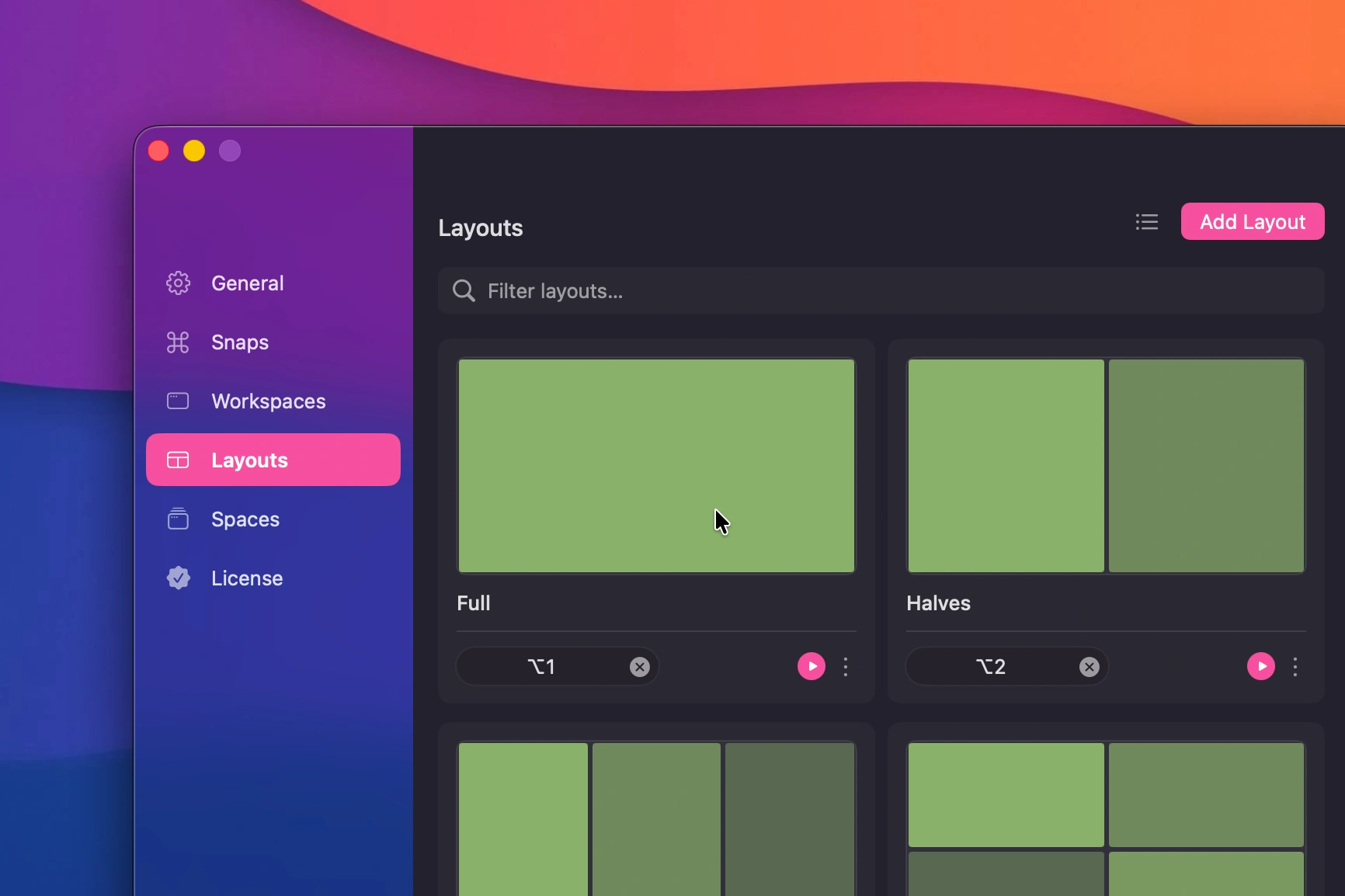 Predefined window layouts
10:30 AM. Meeting starts. Switch to meeting workspace: Zoom front and center, notes app on the side.
11:00 AM. Meeting ends. Hit one shortcut. Dev workspace is back, exactly as you left it.
1:00 PM. Disconnect laptop, go to a cafe. Work on the built-in display.
3:00 PM. Back at desk. Plug in the monitor. Snapback detects the display and moves windows back to their assigned screens.
5:30 PM. Close laptop. Go home.
Next morning. Open laptop. Hit one shortcut. Everything is back.
With Rectangle, steps at 11:00 AM, 3:00 PM, and the next morning would involve manually dragging windows back into position.
Which Should You Install?
Install Rectangle if:
- You want basic window snapping and nothing more
- Your layout rarely changes
- You prefer open source tools
- You do not switch between different work setups
Install Snapback if:
- You switch between work contexts throughout the day
- You use multiple monitors and dock/undock regularly
- You want your layout to survive restarts and meetings
- You want workspace restoration, not just window snapping
Install both if:
- You already use Rectangle and want to add workspace restoration without changing your snapping habits
Try It
Snapback is free, so the cost of trying it is zero. If workspace restoration does not change your workflow, uninstall it and stick with Rectangle. No harm done.
But most people who try workspace restoration do not go back. Once your Mac remembers your layout, manually rebuilding it feels like a step backward.
Download Snapback from the homepage or read the getting started guide. Already using Rectangle? Snapback works right alongside it.
- snapback
- rectangle
- window manager
- macOS
- comparison