10 Must-Have Mac Apps in 2026
The 10 must-have Mac apps I install on every new Mac: launchers, window management, screen recording, menu bar cleanup, and other small essentials.
The Setup Test
Every time I set up a new Mac, I notice the same thing: macOS out of the box is good, but not finished. Spotlight is slow to search, the menu bar fills up with icons, screenshots land on the desktop, and window management is basically dragging things around by hand.
The gap between a fresh Mac and a Mac that feels great to use is about a dozen apps. These are the ones I install first, every time, in the order I install them.
A quick note on how I picked these: everything on this list is actively maintained in 2026, most of it is free, and nothing here requires disabling security features or fighting with configuration files. These are tools for getting work done, not projects in themselves.
1. Raycast
Replaces: Spotlight Price: Free (Pro is optional, from $8/month)
Raycast is the first thing I install on any Mac. It is a launcher, but that undersells it. It opens apps, does math, converts currencies, manages your clipboard history, snippets, and window focus, and has an extension store with thousands of integrations.
The clipboard history alone justifies the install. Once you can paste something you copied twenty minutes ago, you cannot go back.
If you want a heavier alternative that folds in system monitoring and screenshot tools alongside the launcher basics, Vorssaint is a free, open-source option built the same way, install only the pieces you use.
The habit change: You stop looking for things. Cmd+Space, type three letters, hit return.
2. Snapback

Replaces: Dragging windows around by hand Price: Free (Pro is optional, $9.99 one-time)
macOS still has no real answer for window management. The green button gives you full screen or a rigid split view, and that is about it.
Snapback is a full window manager, and the core of it is free. Snapping: move any window to halves, thirds, or quarters with a keyboard shortcut, or hold Command and drag it to a screen edge.
 Drag a window to snap it into place
Layouts: predefined grids that arrange every open window at once instead of one at a time. Pick halves, thirds, or quarters and everything jumps into place.
Workspaces are the part no other window tool does. Save a full snapshot of your Mac: every app, every window position, every display. Create unlimited named workspaces for coding, meetings, design, or whatever you switch between. One shortcut saves, one shortcut restores. Close your laptop, disconnect a monitor, restart your Mac, and your layout comes back exactly as you left it, including reopening apps you closed.
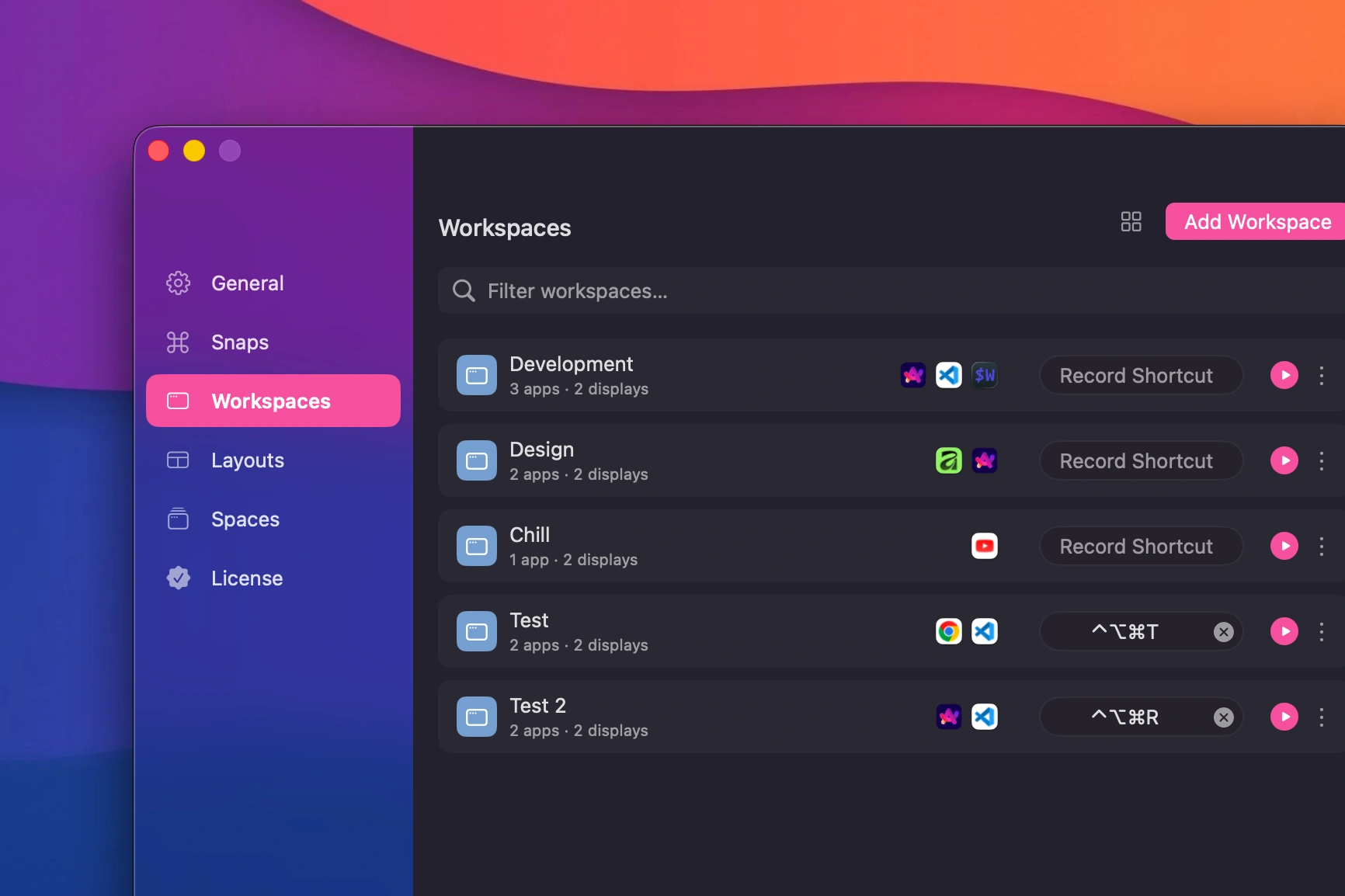 Saved workspaces with multiple configurations
It also works across up to six displays, and layouts adjust automatically when you plug or unplug a monitor. See the guide to managing multiple monitors on Mac for more on multi-display setups.
If you outgrow the defaults, the optional Pro upgrade adds a command palette, custom layouts, Spaces for grouping workspaces by context, and smart launchers that open folders, URLs, or terminal commands when a workspace is restored. But the free version is the complete window manager, not a trial.
If you want a deeper comparison of the options in this space, I wrote a full breakdown of the best Mac window managers. The short version: use whatever you like for snapping, but nothing else restores full layouts.
The habit change: You stop rebuilding your window layout every morning.
3. CleanShot X (or Shottr)
Replaces: The built-in screenshot tool Price: ~$29 one-time, or Shottr is pay what you want
The built-in macOS screenshot tool is fine until you need to annotate something, hide your desktop icons, capture a scrolling page, or record a quick GIF. CleanShot X does all of that, and screenshots land in a floating overlay you can edit or drag straight into Slack instead of piling up on your desktop.
If you do not want to pay, Shottr covers most of the same ground with a pay-what-you-want license (including $0), including scrolling capture and OCR text extraction from images.
The habit change: Screenshots become communication, not clutter.
4. Recordly
Replaces: QuickTime screen recording, paid demo-video tools Price: Free, open source
Screenshots cover half of visual communication. The other half is recording your screen, and this is where Recordly earns its spot. It records your screen and automatically adds the polish that normally takes editing: auto-zoom on the area you are working in, smooth animated cursor movement, webcam overlay, captions, and a styled background frame around the final video.
The result looks like the product demos you see from companies with a video team, except you just hit record and did your thing. It is open source and free, which is remarkable given that the commercial tools in this category charge real money for the same effects. Requires macOS 14 or later.
The habit change: Recording a quick demo stops being a production. You record, you send, done.
5. Ice
Replaces: A menu bar with fifteen icons Price: Free, open source
Every utility you install adds a menu bar icon, and by app five your menu bar looks like a browser toolbar from 2006. Ice lets you hide icons behind a toggle so you only see what you actually check.
Ice took over this category after Bartender changed ownership and lost a lot of user trust. It is free, open source, and does the one thing well.
The habit change: Your menu bar shows three icons instead of fifteen.
6. AppCleaner
Replaces: Dragging apps to the Trash and hoping Price: Free
Deleting an app on macOS leaves preference files, caches, and support folders behind. AppCleaner finds all of it. Drop an app onto the window and it lists every related file for removal.
It is small, free, and has worked the same way for over a decade. There is no reason not to have it.
The habit change: Trying apps becomes free. Install anything, remove it completely.
7. IINA
Replaces: QuickTime Price: Free, open source
QuickTime plays about half the video files people actually have. IINA plays all of them, looks like a native Mac app, supports picture-in-picture, playlists, and subtitle downloading, and is built on mpv so playback quality is excellent.
The habit change: Video files just open. You stop thinking about codecs.
8. Keka
Replaces: Archive Utility Price: Free (or ~$5 on the App Store to support development)
The built-in Archive Utility handles zip files and nothing else. The first time someone sends you a 7z or RAR file, you need Keka. It compresses and extracts basically every format, supports password-protected archives, and can split large archives into parts.
The habit change: None. That is the point. Archives stop being a problem you notice.
9. Stats
Replaces: Opening Activity Monitor to find out why the fans are on Price: Free, open source
Stats puts CPU, memory, network, and battery information in your menu bar. When your Mac slows down or the fans spin up, you glance at the menu bar instead of digging through Activity Monitor.
Pairs well with Ice from earlier in this list: keep the one or two stats you care about visible, hide the rest.
The habit change: You know what your Mac is doing at a glance.
10. AltTab
Replaces: The built-in Cmd+Tab switcher Price: Free, open source
The macOS app switcher shows you app icons, not windows. If you have four browser windows open, Cmd+Tab treats them as one thing. AltTab replaces it with a Windows-style switcher that shows a preview of every individual window.
If you work with many windows of the same app (multiple projects, multiple browsers), this fixes a daily annoyance. It also complements a window manager nicely: Snapback puts windows where they belong, AltTab gets you to the right one.
One caveat: if you lean heavily on Stage Manager, check compatibility on the latest macOS first. There are open reports of windows not displaying correctly with Stage Manager active. DockDoor is a solid open-source fallback if you hit it.
The habit change: You switch to windows, not apps.
Two Bonus Picks
These two did not make the core ten, one because notes apps are too personal to prescribe, the other because it is pure fun. Both live on my Mac anyway.
Obsidian
Replaces: Apple Notes, scattered text files Price: Free, even for commercial use
Notes apps are personal, so treat this one as a recommendation rather than a rule. I use Obsidian because everything is stored as plain Markdown files on disk. And since 2025 it is completely free, even for work: the commercial license requirement was dropped and is now a voluntary way to support development. No lock-in, no proprietary format, works offline, and there are thousands of community plugins.
If Obsidian feels like too much, Apple Notes has genuinely improved and syncs everywhere. The important thing is having one place where notes go.
The habit change: Ideas have a home. You stop losing them in Slack messages to yourself.
CleanupBuddy
Replaces: Shutting down your Mac to clean the keyboard Price: Free download
CleanupBuddy does exactly one thing: it locks your keyboard and trackpad so you can wipe them down without typing gibberish into whatever was open, and without powering anything off. Hold both Command keys when you are done and everything unlocks.
It sounds silly until the first time you clean an iMac or Mac mini keyboard without hunting for the shutdown option. Requires macOS Ventura or later.
The habit change: Your keyboard actually gets cleaned.
The Full List
| App | Category | Price |
|---|---|---|
| Raycast | Launcher | Free |
| Vorssaint | Launcher alternative | Free |
| Snapback | Window management | Free (Pro optional) |
| CleanShot X | Screenshots | ~$29 |
| Shottr | Screenshots | Pay what you want |
| Recordly | Screen recording | Free |
| Ice | Menu bar | Free |
| AppCleaner | Uninstaller | Free |
| IINA | Media player | Free |
| Keka | Archives | Free |
| Stats | System monitor | Free |
| AltTab | Window switcher | Free |
| Obsidian | Notes | Free |
| CleanupBuddy | Keyboard cleaning | Free |
Total cost if you go all-free: $0. With CleanShot X: about $29. That is the entire gap between a stock Mac and a great one.
Where to Start
If installing ten apps at once feels like a chore, start with three: Raycast, Snapback, and Ice. A fast launcher, windows that behave, and a clean menu bar cover most of what makes a Mac feel slow and messy day to day.
Then add the rest as you hit the problem each one solves. You will know when.
Download Snapback from the homepage or check the Help Center to get started.
- mac apps
- macOS
- productivity
- utilities
- must have